Monday, January 7, 2013

Backtrack Forensics: Truecrypt

Forensics -> Digital Anti Forensics

Truecrypt is an application that will can do 3 main things:
  • Encrypt an entire external drive (USB, HDD)
  • Create encrypted files, which can be mounted as a drive / partition
  • On Windows it can run the entire drive where it is installed, thus it will require pre-boot authentication
So basically the purpose is to hide data, and harden other's job if need to do forensic investigations on our encrypted drive / file. Truecrypt recommends to use at least 20 character long passwords. We can also specify keyfiles, which will be used as an addition to the password. Anything can be used, but compressed files are recommended. Keyfiles stored on smart cards are also supported.
The encryption algorithms are very strong we can choose from AES, Twofish, Serpent, or we can even cascade them and use multiple:
  • AES-Twofish
  • AES-Twofish-Serpent
  • Serpent-AES
  • Serpent-Twofish-AES
  • Twofish-Serpent

The encryption doesn't have any backdoor, so if we forgot the password or lose the keyfiles, it's impossible to crack it. FBI failed as well, as stated here: http://news.techworld.com/security/3228701/fbi-hackers-fail-to-crack-truecrypt/.
Another great feature is that it can create a hidden part on a truecrypt volume. It will have an outer and a hidden part, which is located at the physical end of the main. For example if we have a 10G volume, we can choose to have a 2G (up to 10G) hidden part, the outer partition will always appear as 10G in size, and the hidden as 2G. If the volumes are not mounted then it's impossible to tell if there is a hidden part or not. This means that when we mount the outer partition normally, the app doesn't have a view on the hidden one, and thus we have the risk of overwriting data on it, cause we can utilize the whole drive. We have the option to mount it with hidden volume protection, but for that we will need to supply the password for that as well.
This feature is useful if you are forced to reveal the password for your encrypted media, and can't refuse it. With that you can supply the password for the outer volume, and the hidden part remains unseen, and no one can tell if there is one or not.

Here we can see a mounted file:


and here we can see that file being accessed as a mounted partition, and we can se it as a normal storage media:


Official Website: http://www.truecrypt.org/

Sunday, January 6, 2013

Backtrack Forensics: scalpel

Forensics -> Forensic Carving Tools
/usr/local/bin/scalpel

Scalpel is a very similar tool to foremost, it will data carve files, based on their header and footer information, it's also file system independent. It can work on drives directly or on image files.

Usage:

The biggest difference to foremost is that we need to edit the scalpel.conf file (/etc/scalpel/scalpel.conf), and uncomment lines (remove #) that specifies the file type we would like to recover.


Few of the many options:
-c  Choose configuration file.
-n  Don't add extensions to extracted files.
-o  Set output directory for carved files.
-O  Don't organize carved files by type. Default is to organize carved files into subdirectories.
-v  Verbose mode.

scalpel -c /etc/scalpel/scalpel.conf -o output2/ Desktop/forensics/11-carve-fat/11-carve-fat.dd 

I used the same test forensic image as with foremost.

Editing the conf file:


Running the command:


MD5 check, based on this it successfully extracted only 2 files, which means that foremost performed better in this case.


audit file:


Backtrack Forensics: dcfldd

/usr/bin/dcfldd

dcfldd is an enhanced version of the older dd imaging tool, and it has a couple of new features:
  • Hashing on-the-fly - dcfldd can hash the input data as it is being transferred, helping to ensure data integrity.
  • Status output - dcfldd can update the user of its progress in terms of the amount of data transferred and how much longer operation will take.
  • Flexible disk wipes - dcfldd can be used to wipe disks quickly and with a known pattern if desired.
  • Image/wipe Verify - dcfldd can verify that a target drive is a bit-for-bit match of the specified input file or pattern.
  • Multiple outputs - dcfldd can output to multiple files or disks at the same time.
  • Split output - dcfldd can split output to multiple files with more configurability than the split command.
  • Piped output and logs - dcfldd can send all its log data and output to commands as well as files natively.
Usage examples:

dcfldd if=/dev/sdb of=usb1G.dd - make an image file
dcfldd if=/dev/sdb of=usb1G.dd hash=md5,sha1 hashconv=after hashlog=hashlog.txt - calculate hash after imaging
dcfldd if=/dev/sdb splitformat=nn split=512M of=usb1G.dd - splitting the image to 512M chunks, with appending 2 numbers (counter) to each. Splitting has to be defined before the output file.


Backtrack Forensics: foremost


Forensics -> Forensic Carving Tools
/usr/local/bin/foremost

foremost is a data carving tool, which can work on drives or image files. It extracts files based on their internal structure / signatures / header and footer information. It will also recover deleted files. There are a lot of pre-defined types, but if wee need additional, we can define them at foremost.conf, which is located at /usr/local/etc/

Usage examples:

foremost -t jpeg,wmv -i Desktop/forensics/11-carve-fat/11-carve-fat.dd - carve jpeg and vmw files
foremost -t jpeg,wmv -w -i Desktop/forensics/11-carve-fat/11-carve-fat.dd - only create audit file, without actually extracting the files

It will extract files to a directory called "output" by default, and also crated an audit.txt file, where it will print a summary information.

In the example below I used the forensic test image #11, which can be found here:
This is a great resource for testing forensic tools.

Data carve jpeg and wmv files from the image:


Produced output:


audit.txt


Running md5deep we can verify on the list: http://dftt.sourceforge.net/test11/index.html which files were extracted. We can see that any corrupted or invalid files were not carved, and deleted files were extracted.


Official Webpage: http://foremost.sourceforge.net/

Backtrack Forensics: ddrescue & dd_rescue

Forensics -> Forensic Imaging Tools

/pentest/forensics/ddrescue/dd_rescue
/sbin/ddrescue

Both tools are intended to copy one file or block device (HDD, pendrive, etc...) to another while trying to recover data. Basically both can do the same, but the syntax is a bit different.

dd_rescue switches to a smaller block size (down to 512 bytes) when it finds errors on a specified media, and then skips the error sectors. This way it will restore the most it can. It will not abort operation when finds an error by default. An interesting feature that it can read the media backwards.

dd_rescue examples

dd_rescue infile outfile

dd_rescue /dev/sdb hdd.dd - basic copy
dd_rescue -l logfile.txt /dev/sdb hdd.dd - specifying a logfile as well
dd_rescue -e 3 -l logfile.txt /dev/sdb hdd.dd - stop after 3 errors
dd_rescue -r -e 3 -l logfile.txt /dev/sdb hdd.dd - image in reverse copy


ddrescue can do the same basically, but I haven't found a reverse read option. If it is stopped from some reason it can restart the copy from the last block, based on the logfile. At the end we can see "+/-" signs next to the blocks. + means it was good - means it contained errors.

ddrescue examples:

ddrescue [options] infile outfile [logfile]

dd_rescue /dev/sdb hdd.dd - basic copy
dd_rescue /dev/sdb hdd.dd log.txt - write a log
dd_rescue -e 3 /dev/sdb hdd.dd log.txt - stop after 3 errors
dd_rescue -v -e 3 /dev/sdb hdd.dd log.txt - verbose mode


Official Websites:

Saturday, January 5, 2013

Backtrack Forensics: missidentify

Forensics -> Forensic Analysis Tools

missidentify is a tool to find Windows executable files, based on the PE header of the file, thus it can find executables regardless of the extension. Programs, device drivers, and DLLs will have PE header (there are a lot of excellent sources on the Internet about the PE header analysis). By default the program displays the filename if the extension of the file does not match one of the known executable extensions (.exe, .com, .sys, or .dll).

Usage examples:

List all executable recursively in a directory, regardless of the extension, and show only the filename:

missidentify -rab [directory]

List all executable recursively in a directory, regardless of the extension, and show the full path:

missidentify -ral [directory]

Display version:

missidentify -V

Here is a screenshot from my test. You can see that it finds executable even when the file name doesn't match (something.txt -s are actually dll).


Official Webpage: http://missidentify.sourceforge.net/

Friday, January 4, 2013

Backtrack Forensics: vinetto

Forensics -> Forensic Analysis Tools

Vinetto is a forensics tool to examine Thumbs.db files. These files store the thumbnails of images under Windows, you can extract that and file names with this app. More info here on these files is here:


The usage is very simple:

vinetto -o [output directory] [location of the Thumbs.db file]

-H - creates a HTML report of the output


It will create a hidden directory .thumbs and extract all the thumbnails there.


Thursday, January 3, 2013

Backtrack Forensics: rifiuti2

Forensics -> Digital Forensics

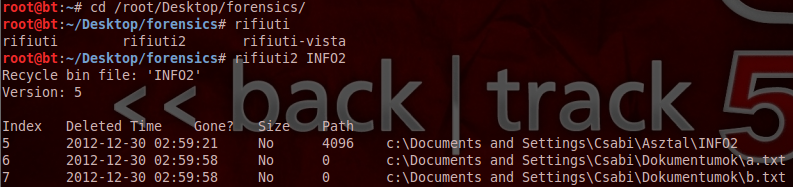
rifiuti2 is a tool to analyze Windows recycle bin INFO2 files, where the OS stores the recovery information of the deleted files. The INFO2 file was discontinued from Vista, and the restore information is stored in files inside the recycle bin. The rifiuti-vista tool supports the new format.

Two good articles about the MS Windows recycle bin:


Using the app is very simple:

rifiuti2 INFO2

-x - we can display the output in XML
-o - we can write the output to a file


rifiuti-vista win7recycle/

Here we have similar options, and we can also specify a directory as an input (as the restore information found in multiple files).


Wednesday, January 2, 2013

Backtrack Forensics: fatback

Forensics -> Forensic Carving Tools

fatback is a simple utility to recover deleted files from FAT16/32 partitions. It will recover files only from the latest partition, other words, it can't recover files after the drive has been formatted. It can be used in either automatic or manual mode. If used in auto mode, we have to specify an output directory.

Usage examples:

Auto mode, with specifing outut directory:

fatback -a /dev/sdb -o FatBackOut

Interactive mode, it's quite straightforward to use, if looking on the help:

fatback /dev/sdb

fatback> ls
fatback> help


It will also create a log file, about the restore in the directory where it was run from.


Tuesday, January 1, 2013

Backtrack Forensics: mork.pl

Forensics -> Forensic Analysis Tools

This is a program that can read the Mork file format, which was used by Mozilla for URL history files, which is named "history.dat", and by Thunderbird for contacts. Unfortunately  Firefox doesn't use this file for about 5 years now, as stated here: http://kb.mozillazine.org/History.dat. The location of this file was under:

WinXP:
C:\Documents and Settings\<username>\Application Data\Mozilla\Firefox\Profiles\<random text>\history.dat

Vista/Windows 7:
C:\Users\<username>\AppData\Roaming\Mozilla\Firefox\Profiles\<random text>\history.dat

I haven't installed any old Firefox to try it, nor was able to get a sample file to test the application, but here is its help:

usage: mork.pl [--verbose] [--html] [--age secs] mork-input-file
'age' can be of the form '2h', '3d', etc.


Mork file format: http://en.wikipedia.org/wiki/Mork_(file_format)

Tool's website: http://code.google.com/p/linuxsleuthing/source/browse/nautilus-scripts/.support_scripts/mork.pl